Checked on 24 November 2026 against Shopify's help centre, the Shopify App Store and each vendor's own pages. Every source is listed at the end of the post.
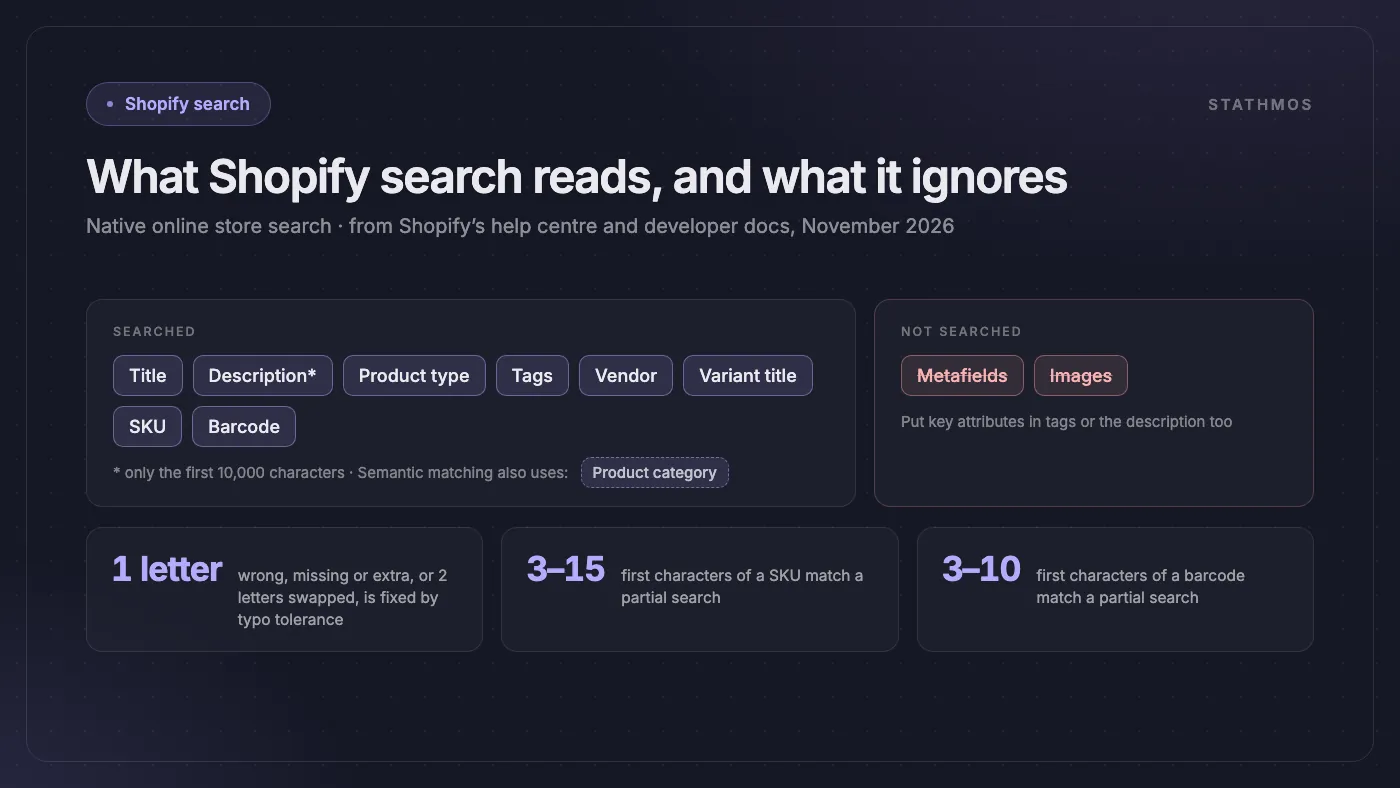
The short answer. When Shopify search returns nothing for a product you have in stock, there are two usual causes. Either the product is hidden from search, or the word the shopper typed is not in any field Shopify searches. A product is hidden if it is not published to the Online Store channel, is set to Unlisted, has the seo.hidden metafield set to 1, or is out of stock while your settings hide out-of-stock items. Shopify searches the title, description, product type, tags, vendor, variant title, SKU and barcode. It does not search metafields. Find the failing searches in the Searches with no results report. Fix them for free with better product text, tags and product boosts in the Shopify Search & Discovery app. Shopify retired the app's synonyms feature in September 2026, so tags now do that job. If you still need more control, trial Algolia, Athos Commerce (formerly Searchspring and Klevu), Boost, Searchanise, Doofinder, Nosto or Constructor. Run your top 100 zero-result searches through each one, then A/B test the winner before you sign.
This is a bigger problem than it looks. In Baymard Institute's 2026 search benchmark of more than 170 sites and apps, 56% of sites "fail to adequately support users’ search needs". On Shopify you also cannot tune the engine yourself. Shopify says there is no setting for how broadly search matches, and you cannot change how results are ordered. So the fixes below are about your product data, your settings and, if needed, the tool you choose.
We covered the wider case for AI search in AI Search on Shopify: Fixing the 30% Who Search and Leave. This post is the practical follow-up: what Shopify's own search does today, what changed in 2026, and how to choose and test a replacement.
How to Find Zero-Result Searches in Shopify
Shopify gives you four search reports. Open them in the free Shopify Search & Discovery app (Apps → Search & Discovery), which shows the last 30 days. For other date ranges, open the same reports in Analytics → Reports.
| Report | What it tells you |
|---|---|
| Searches with no results | Every search term that returned nothing, with the number of sessions. Start here. |
| Searches with no clicks | Terms that returned results nobody clicked. Often the results were wrong, not missing. |
| Searches by search query | Your most-used terms. Use it to work out what share of all searches return nothing. |
| Search conversions over time | Click rate, add-to-cart rate and purchase rate for sessions that searched. |
Four things to know before you trust the numbers:
- The data is up to 72 hours behind. Don't judge a fix the next morning.
- Predictive search is not counted. The reports cover the search results page only, not the drop-down that appears as shoppers type.
- Your theme must support tracking. Search conversions are only tracked if the theme uses the
urlthat Shopify returns for each search result. All Shopify-built themes do. A custom or heavily edited theme may not. - Sidekick can't help here. Shopify's AI assistant can answer questions about sessions and conversion, but not about search data.
Shopify does not name a plan limit for these reports, and says the main Analytics features are on every plan. To get your zero-result rate, add up the sessions in Searches with no results and divide by the total sessions in Searches by search query for the same dates. Write that number down. It is your baseline.
Use Search preview (Search & Discovery → Search preview) to see what any term returns, in order, without changing your store. It lists up to 50 of your top searches from the last 30 days, and you can pick a language. Searches you run there are not added to your reports.
Why Shopify Search Returns No Results for Products in Stock
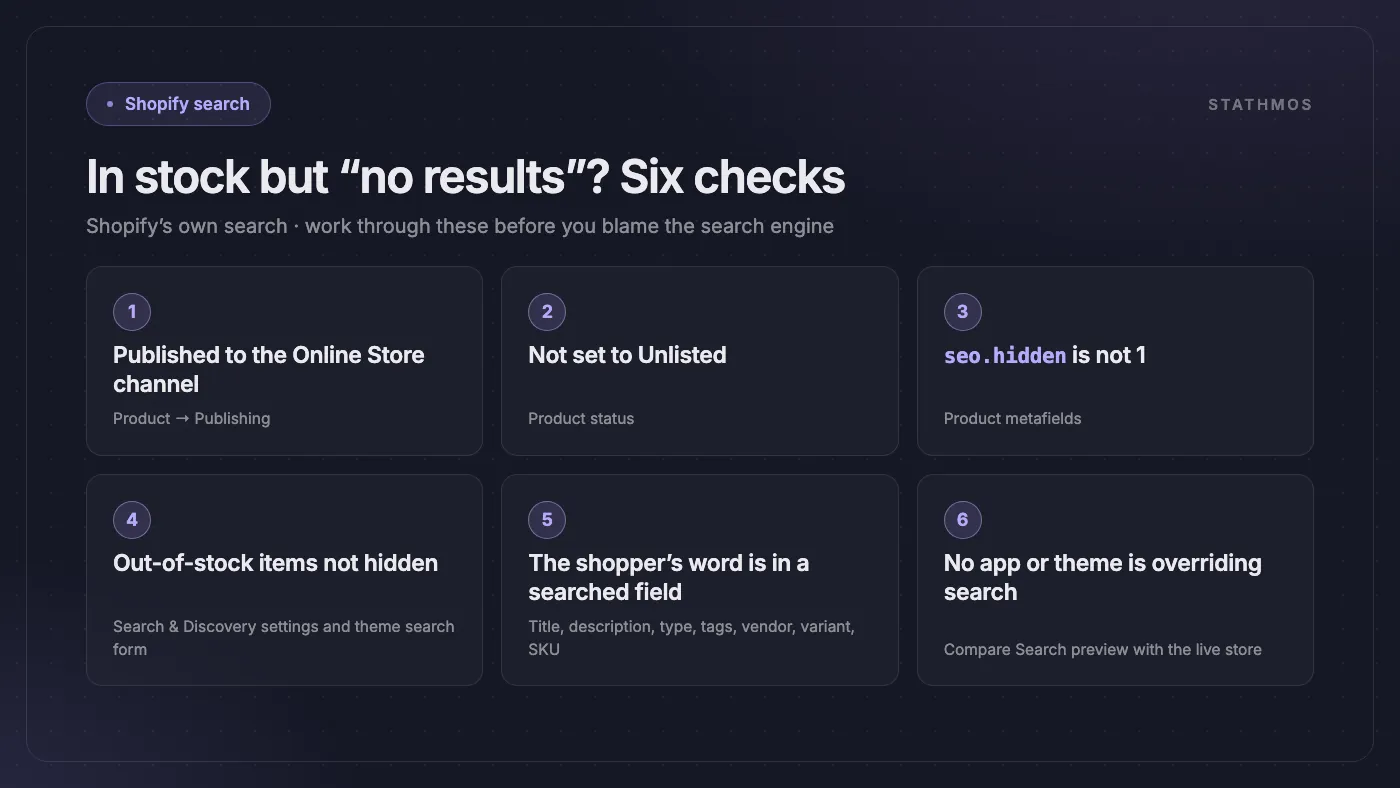
Take your top 20 zero-result terms and check each one against this table. Most stores find two or three causes covering nearly all of them.
| Cause | How to check | Fix |
|---|---|---|
| Product not published to the Online Store channel | Product page → Publishing | Publish it to Online Store |
| Product set to Unlisted | Product status | Set it to Active if it should be found |
seo.hidden metafield set to 1 | Add /metafields.json to the product's admin URL | Set it to 0 or clear it |
| Out-of-stock items hidden | Search & Discovery → Settings → Out of stock products, and your theme's search form | Show them last instead of hiding them |
| The shopper's word is not in a searchable field | Is the word in the title, description, type, tags, vendor or variant name? | Add it to the product text or tags |
| The word only appears in a metafield | Metafields are not searched | Copy key attributes into tags or the description |
| The word is late in a long description | Only the first 10,000 characters are searched | Move key terms to the top |
| Typo beyond Shopify's tolerance | More than one letter wrong | Add the common misspelling as a tag |
| Part of a SKU from the middle | Search the SKU's first characters instead | Split codes with hyphens, or add the part number as a tag |
| The shopper's language is not supported | Check Shopify's list of 33 search languages | Translate products, or use an app that supports the language |
| A search app or custom theme controls search | Compare Search preview with your live store | Fix it in that app, or remove the app |
Hidden settings that remove products from search
Products that are fully out of stock show at the end of the results by default. In Search & Discovery → Settings you can show them, hide them or keep them last. Check your theme too. A theme's search form can send options[unavailable_products]=hide, which removes out-of-stock items whatever you choose in the app. If a sold-out product disappears, the shopper sees no results and never sees a notify me button. Showing it last is usually better than hiding it.
Recent edits can also be the reason. Shopify says single product edits reach search within seconds, but bulk edits can take several hours. After a store is reactivated, products can take up to 36 hours to be indexed again. Changes to product translations reach search the same day.
What Shopify search reads, and what it ignores
This is where most "we stock it but search can't find it" problems come from:
- Metafields are not searched. Many stores keep material, fit, compatibility or size in metafields, which is the right place for filters. But none of Shopify's lists of searchable product fields, in its help centre or its developer docs, includes metafields. If shoppers search by an attribute, it also needs to be in the title, description or tags.
- Product category is a special case. Shopify's help centre does not list it as a searchable field, either for the search results page or for predictive search. It does say that semantic understanding uses the category to find related products. Only Shopify's developer docs for the Predictive Search API list it as a searched field. So set the category, but put the shopper's exact word in the title, description or tags.
- Typo tolerance is narrow. Shopify fixes a word with one missing, extra or wrong letter, or two letters swapped: cofee finds coffee. Two mistakes in one word may not.
- Search syntax turns the clever parts off. If a search uses quotes, a field name such as
title:,ORor a minus sign, typo tolerance and semantic matching stop working, and product boosts are not applied. - SKUs match from the start. A search for part of a SKU matches its first 3 to 15 characters (3 to 10 for a barcode). The middle or end of a code only matches if it is a separate segment split by a hyphen, slash or space. So
888findsabc1-888-xlbut888xldoes not findabc1888xl. - A search made only of stopwords, such as the, returns every product rather than nothing. That can look like a relevance bug.
Languages and Shopify Markets
Shopify search supports 33 languages, including German, French, Italian, Spanish, Dutch, Polish and Japanese. Arabic, Hebrew and Ukrainian are not on the list. If you sell across Europe with Shopify Markets, check each storefront language against Shopify's list, and make sure the product translations exist. Shopify's Predictive Search API docs say that on a translated storefront only the translated title, description and variant title are searched, so a German shopper's word needs to be in the German text. Use Search preview's Language menu to test each one.
What Changed in Shopify Search in 2026
Two changes matter if your search used to work and now doesn't.
Synonyms are gone from Search & Discovery. Merchants began reporting in mid-September 2026 that the Synonyms section had been retired. Shopify's help page on modifying search no longer mentions synonyms, and the old synonyms help link now redirects to it. The App Store listing still tags Synonym groups, so don't rely on it. If you had a synonym list, it no longer works.
Semantic search is now always on. Shopify calls it semantic understanding. It is built into online store search, and there is nothing to switch on. It looks for related words and ideas using the title, description, product type, product category and tags, but not images. In 2024 it was an opt-in feature for the Shopify plan and above. Today Shopify's help names no plan limit. The downside is that it can be too generous. In September 2026 merchants on the Shopify Community reported searches returning hundreds of loosely related products. Semantic matching also does nothing for searches that use search syntax.
So the old fix for jumper versus sweater (a synonym group) no longer exists. Today the free options are product text, tags and boosts.
Free Fixes in Shopify, in Priority Order
Do these before you look at any app. Each one costs only staff time, and each one makes a paid tool work better later, because every search tool reads the same product data.
- Make every product searchable. Clear the visibility causes in the table above: publishing, Unlisted,
seo.hiddenand hidden out-of-stock items. It takes minutes and often fixes the worst cases. - Use your shoppers' words. For each zero-result term, decide which product should appear, then put the shopper's word in that product's title, description or tags. Tags are searched and allow for typos, so they are the closest free replacement for the lost synonyms. Keep tags tidy, because they may also drive collections and filters.
- Copy key metafield values into searchable text. If shoppers search by material, size or compatibility, those words must be in the description or tags as well as the metafield. Our guide to enriching a large catalogue with AI shows how to do this at scale. The example is Magento, but the method works for Shopify.
- Boost the right product for your top terms. In Search & Discovery → Product boosts, pick a product and add up to 10 search terms. Boosts only lift products that are in stock, and they are skipped when a search uses search syntax. Boost one or two products per term, not dozens.
- Add filters to large result sets. Search & Discovery allows up to 25 filters, based on options, metafields or metaobjects. Note that a collection with more than 5,000 products shows no filters.
- Make the no-results page useful. It is part of your theme: show your best sellers, top collections and a contact link instead of a dead end.
- Re-check after 72 hours in Searches with no results, then repeat with the next 20 terms.
When Shopify's Native Search Is Not Enough
Native search is free and good enough for many stores. Consider a paid tool when you have done the free fixes and one or more of these is still true:
- You need to control ranking. Shopify does not let you change how results are ordered, and it tests ranking changes on some of your shoppers. Boosts are the only lever.
- You need real synonyms, or rules such as send this search to that page. Search & Discovery has neither.
- Shoppers search by part numbers taken from the middle of codes, or by attributes that live only in metafields.
- You sell in a language Shopify search doesn't support.
- You want A/B testing and merchandising rules for search, for example pushing high-margin lines or demoting a brand during a promotion.
- Search is a large share of revenue, so a small lift in search conversion pays for the fee. Check this in Search conversions over time before you buy.
Remember that once a third-party search app is installed, it controls your results. Shopify's search rules and some visibility settings stop applying. Shopify warns that an app not built to respect Unlisted status can still show unlisted products. Check what each app adds to your storefront, and measure page speed before and after. Our Shopify app audit explains how.
Shopify Search Apps and Vendors to Evaluate
Here are seven vendors worth a look. We read their Shopify App Store listings again on 24 November 2026. That day, Algolia's listing said the app "is not currently available on the Shopify App Store". Algolia's own docs still explain how to install it from Algolia's website. Some names have changed: Searchspring and Klevu are now one company, Athos Commerce, and Boost's app is called Boost AI Search & Filter. The table describes each tool in its own words. We have no commercial ties to any of them.
| Tool (App Store listing) | Free plan or trial | How it is priced |
|---|---|---|
| Shopify (Search & Discovery) | Free | Free |
| Algolia (Algolia AI Search & Discovery; listing unavailable) | Free plan: 10,000 search requests a month | By usage: searches and records |
| Athos Commerce (Athos: Unified Discovery, formerly Searchspring) | None listed | Three tiers, billed by Athos |
| Athos Commerce (Klevu ‑ AI Search & Discovery) | None listed | Three tiers, billed by Athos |
| Boost Commerce (Boost AI Search & Filter) | 21-day trial | By online sales (GMV) |
| Searchanise (Searchanise AI Search & Filter) | Free plan under 25 products; 14-day trial | By number of products |
| Doofinder (DOOFINDER ‑ Search & Discovery) | 15-day trial | Monthly or yearly plans |
| Nosto (Nosto | AI Search & Discovery) | None; a paid Nosto account is required | Contact Nosto |
| Constructor (Constructor Connect) | Free Proof Schedule study (2–4 weeks) | Contact Constructor |
From each App Store listing on 24 November 2026, and for Algolia from its own pricing page, because its listing was unavailable that day. Algolia’s pricing page lists 10,000 search requests a month free, then $0.50 per extra 1,000 on its Grow plan. Other listings show prices in the viewer’s local currency, so we have left them out.
On the App Store, each developer ticks its own feature boxes. These ticks are self-declared, not tested by Shopify, so treat them as a shortlist filter, not proof. Shopify's own app still ticks Synonym groups even though synonyms were retired.
| App | Synonyms | Boosts | Personalised | A/B tests | Image search |
|---|---|---|---|---|---|
| Search & Discovery | ✓ | ✓ | – | – | – |
| Athos (Searchspring) | ✓ | ✓ | ✓ | ✓ | – |
| Athos (Klevu) | ✓ | ✓ | ✓ | ✓ | – |
| Boost | ✓ | ✓ | ✓ | – | – |
| Searchanise | ✓ | – | ✓ | – | – |
| Doofinder | ✓ | ✓ | ✓ | – | ✓ |
| Nosto | ✓ | ✓ | ✓ | ✓ | – |
| Constructor | ✓ | ✓ | ✓ | – | ✓ |
✓ = ticked by the developer on its listing; – = not ticked. Read 24 November 2026. Algolia is not shown because its listing was unavailable that day.
App Store ratings on 24 November 2026, in stars out of 5 with the number of reviews: Search & Discovery 2.5 (518), Athos: Unified Discovery 3.6 (22), Klevu 4.9 (13), Boost 4.7 (1,630), Searchanise 4.7 (1,272), Doofinder 4.7 (758), Nosto 4.2 (63). Constructor Connect has no reviews yet, and Algolia's unavailable listing shows no rating. Ratings change often, and a low review count says little.
How they differ, in brief:
- Algolia is a search engine you configure. It publishes its usage pricing, and AI synonyms and ranking come on its higher Grow Plus plan. Its docs say to install the Shopify app from Algolia's own website.
- Athos Commerce brings together Searchspring, Klevu and Intelligent Reach. It sells search, merchandising and recommendations together. The Klevu listing says it works with Shopify Markets and Hydrogen. The Athos listing claims results "adapt in real time to reduce no-result exits".
- Boost and Searchanise are self-service apps with trials. They focus on search plus filters, and both listings say no coding is needed to set them up.
- Doofinder adds an AI shopping assistant to search, according to its listing.
- Nosto is a wider personalisation platform with search as one part. It suits you if you also want its recommendations and content tools.
- Constructor is aimed at enterprise and fast-growing merchants. Its Shopify app syncs your catalogue to Constructor. Its free Proof Schedule is a 2 to 4 week process that uses your shoppers' behaviour to build a business case before you sign.
Questions to ask every vendor: Does it search metafields? How does it handle SKUs and part numbers? Does it respect Unlisted status and Shopify Markets languages? Can it send a search term to a page? How quickly do price and stock changes show in results? Can it run an A/B test against your current search? What does it add to page weight?
How to Test a Search Tool Before You Commit
A vendor demo uses the vendor's catalogue, where everything works. You need to know how the tool does on yours. Five steps:
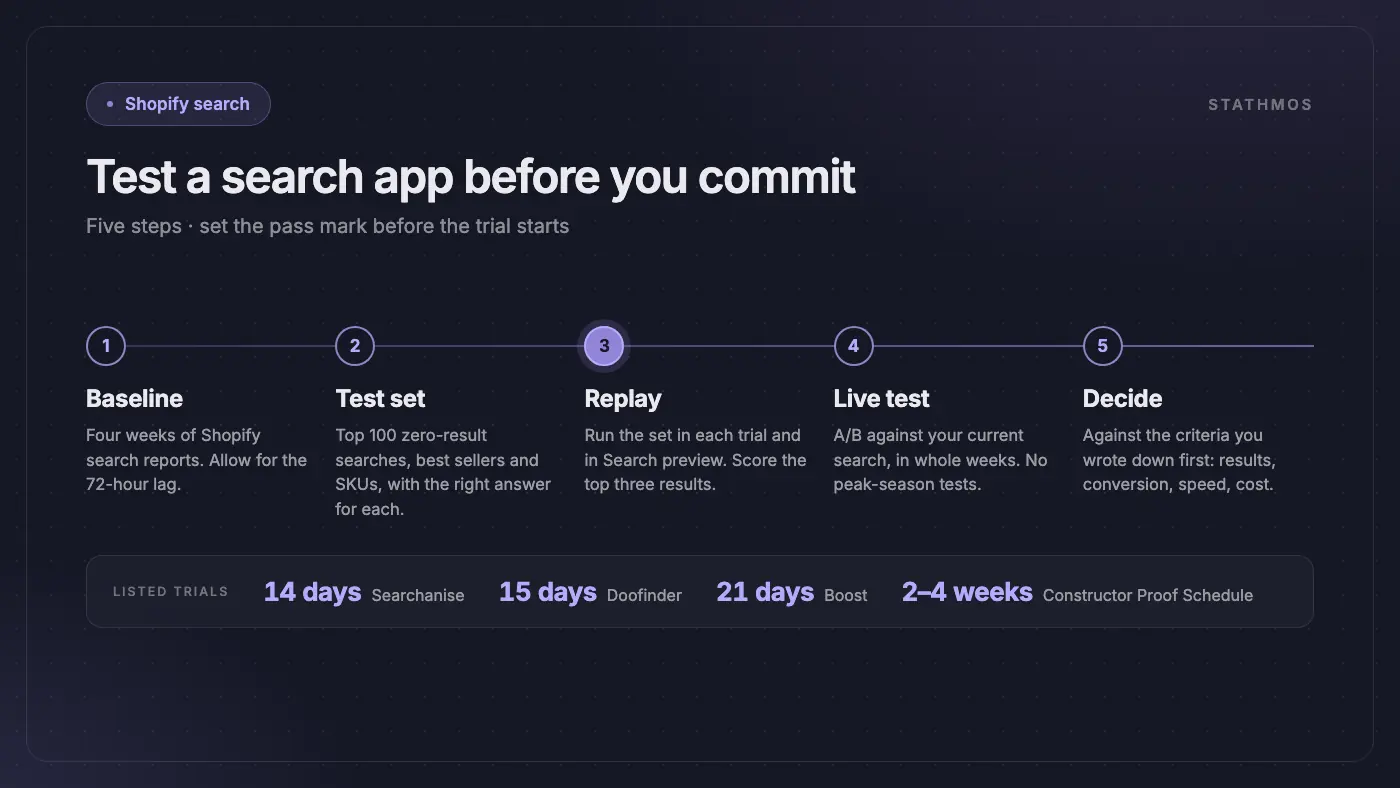
1. Take a baseline
Before you install anything, record four weeks of: zero-result rate, Searches with no clicks, and search click rate and purchase rate from Search conversions over time. Shopify has no search exit report. If you use Google Analytics 4, its built-in site search tracking records a view_search_results event with the search_term whenever the URL contains q=, which Shopify's /search?q= does. You can use that to see which searches end the visit. Don't take the baseline over Black Friday and Cyber Monday (27 to 30 November in 2026). If you follow our Black Friday checklist, your store is frozen from 20 November anyway, so start this in December.
2. Build your test set
Export your top 100 zero-result terms. Add 20 of your best-converting searches, so you can check the new tool doesn't break what already works. Add your hard cases: SKUs, part numbers, common typos and searches in each store language. For every term, write down the product that should come first. Do this before you see any tool's results.
3. Replay it in each trial
Install the trial on a development or unpublished theme with your full catalogue. Run every term and score the top three results: 2 if the right product is there, 1 if something sensible is there, 0 if not. Run the same set through Shopify's Search preview, so native search gets a fair score too. This takes a day per tool and needs no live traffic. It is the best way to cut a shortlist of five down to two.
4. Test it on live traffic
Ask the vendor to A/B test against your current search, with part of your shoppers on each. If it can't, compare equal periods before and after, and be careful: holidays, campaigns and Shopify's own ranking tests all move the numbers. Run whole weeks, so weekdays and weekends are both counted. Plan the test length up front. Algolia's own guidance is to set the duration from your traffic and the size of change you want to detect, and not to stop early. Trial lengths are short: 14 days for Searchanise, 15 for Doofinder and 21 for Boost. Ask for an extension in writing if your traffic needs longer.
5. Decide against criteria you set in advance
| Measure | Where to read it | Pass if |
|---|---|---|
| Score on your test set | Your scoring sheet | Clearly beats native search, with no loss on your best searches |
| Zero-result rate | The tool's report and Shopify's | Falls, without returning junk to hide the gaps |
| Searches with no clicks | Search reports | Falls |
| Search purchase rate | A/B test result | Higher than the control group |
| Page speed | PageSpeed Insights, mobile | No worse than before |
| Cost | The vendor's quote at your size | The extra search revenue covers the fee |
Write the target number for each line before the trial. If you set it afterwards, you will be judging the demo, not the data.
When This Advice Does Not Apply
- Your store is headless. If you use Hydrogen or another custom front end, search runs through the Storefront API and your own code. Boosts and filters from Search & Discovery still work there, but you need Shopify's search tracking set up to learn from shoppers, and the theme advice above won't apply.
- You already use a search app. Shopify's rules in this post describe native search only. Use your app's own logs and ask its developer.
- The searches are for things you don't sell. No tool can fix that. It is a buying signal, so pass the list to whoever chooses your range.
- Your catalogue is small. With a few dozen products, clear menus and collections usually help shoppers more than a search engine does.
- It's the week before a sale. Don't switch search tools during a code freeze. Do the free visibility fixes, and plan the trial for afterwards.
Frequently asked questions
Why does Shopify search show no results when the product is in stock?
Usually the product is hidden from search (not published to the Online Store channel, Unlisted, seo.hidden set to 1, or out-of-stock items hidden), or the shopper's word is not in a field Shopify searches. Shopify searches the title, description, product type, tags, vendor, variant title, SKU and barcode, but not metafields.
Where do I find zero-result searches in Shopify?
In the Shopify Search & Discovery app, or in Analytics → Reports, under Searches with no results. The app shows the last 30 days, the data can be up to 72 hours behind, and predictive search is not counted.
Can I still add synonyms in Shopify Search & Discovery?
No. Merchants reported in September 2026 that the Synonyms feature was retired, and Shopify's help no longer describes it. Add the shopper's words to product tags or text instead, and use product boosts for your most important searches.
Which Shopify search apps should I evaluate?
Tools to look at include Algolia, Athos Commerce (formerly Searchspring and Klevu), Boost AI Search & Filter, Searchanise, Doofinder, Nosto and Constructor. They differ in pricing model, merchandising controls and A/B testing. Choose two by replaying your own failed searches in each trial.
How long should a search app trial run?
Long enough to cover whole weeks and enough traffic to see a real difference, which is often longer than the free trial. Listed trials are 14 days for Searchanise, 15 for Doofinder and 21 for Boost. Plan the length before you start and don't stop early.
Get Help Fixing Shopify Search
We fix Shopify search problems at the source: product data, theme code and settings first, then a fair test of any app worth paying for. Our Shopify development team can audit your search and run the trial for you, and our AI and machine learning team handles large catalogue clean-ups. See more of our Shopify work, or tell us about your store and we will reply within one business day.
Sources
- Shopify Help Center: Storefront search
- Shopify Help Center: Search behavior in your online store
- Shopify Help Center: Managing searchability
- Shopify Help Center: Modifying search with Shopify Search & Discovery
- Shopify Help Center: Shopify Search & Discovery reports and analytics
- Shopify Help Center: Adding filters with Search & Discovery
- Shopify Help Center: Predictive search
- Shopify Help Center: Behavior reports
- Shopify Help Center: Shopify reports
- Shopify.dev: Predictive Search API
- Shopify.dev: Theme search
- Shopify Changelog: Semantic Search is now available on more plans
- Shopify Changelog: Semantic Search now supports more languages
- Shopify Community: Search function completely useless? Synonyms retired?
- Shopify Community: Lost your Search & Discovery synonyms?
- Shopify App Store: Shopify Search & Discovery
- Shopify App Store: Algolia AI Search & Discovery
- Shopify App Store: Athos: Unified Discovery
- Shopify App Store: Klevu ‑ AI Search & Discovery
- Shopify App Store: Boost AI Search & Filter
- Shopify App Store: Searchanise AI Search & Filter
- Shopify App Store: DOOFINDER ‑ Search & Discovery
- Shopify App Store: Nosto | AI Search & Discovery
- Shopify App Store: Constructor Connect
- Algolia: Pricing
- Algolia: What is A/B testing
- Algolia: Get started with Algolia search for Shopify
- Searchspring is now Athos Commerce
- Klevu is now Athos Commerce
- Constructor: The Proof Schedule
- Google Analytics Help: Enhanced measurement events
- Baymard Institute: Ecommerce Search UX Best Practices 2026